
Setting an out of office notification in Gmail
For the Microsoft Outlook user who has migrated to Gmail or is running a personal Gmail account and wants to set up what is called an out of office message in outlook, you can easily do this in Gmail.
This is called vacation responder in Gmail and works basically the same way as Outlook out of office.
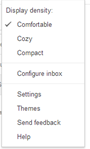
To set a notification go to your email account settings by clicking on the settings Icon in the top right of the screen.

Then select settings from the drop down menu
Then scroll down to Vacation Responder
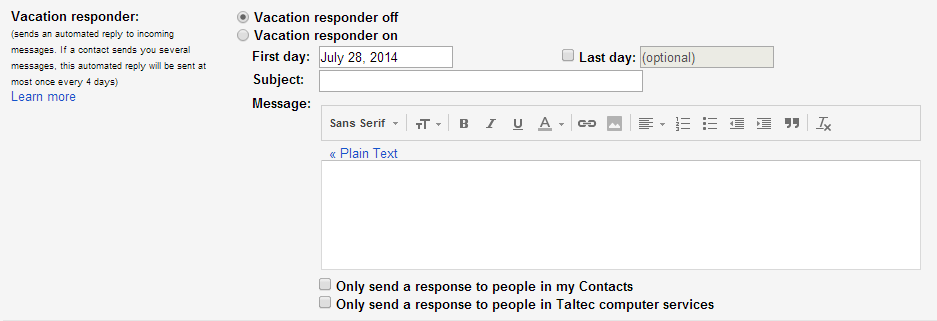
Select the vacation responder on radio box

You can now enter a start date for your notification in the first day box. This will then start at 12.00 am of the date entered as start date and end at 11:59PM on the end date entered.
Now you can enter your message
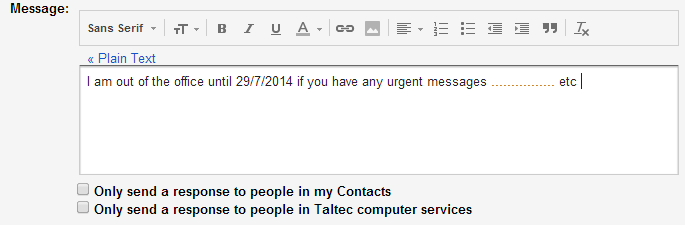
Note that you have the option to only respond to people in your contacts or only send to people in your organisation.
The scroll to the bottom of the page and click save changes.

That is all there is to do. If you need to change or remove the message just come in and make the changes or turn the auto res ponder off.
 The Rowdy Rat Sheet